Halloween: The Game Best Settings: Graphics Options and FPS
Every Graphics option in Halloween: The Game with the game's own on-screen descriptions, plus two creators' tested settings for steadier FPS.
Questions answered
Does Halloween: The Game have a film grain setting?
Should VSync be on or off in Halloween: The Game?
Is Frame Rate Limit better on Unlimited or on a fixed number?
Do these settings apply to PS5 and Xbox?
Will changing these settings actually raise my FPS?
What are the best graphics settings for Halloween: The Game?
The short version, and the one both tested creators converge on: turn Motion Blur and Ray Tracing off, leave VSync off, keep Anti-Aliasing, Post-Process, Texture Quality and View Distance on Medium, and push Effects, Foliage, Shading, Shadow, Global Illumination and Reflection down to Low. Everything above that line is a display or upscaling choice that depends on your monitor and your GPU vendor.
Last verified: September 19, 2026, on PC build 1.0.2.70265.
This page is built from two full settings walkthroughs in which the game’s own options menu fills the screen. That matters for how you should read it: option names, tab structure, values and the descriptive text on the right-hand side of the menu are quoted straight off the screen, the same way our civilian tips quotes trait descriptions. Anything that sounds like a performance claim is a player’s observation on his own hardware and is labelled as such.
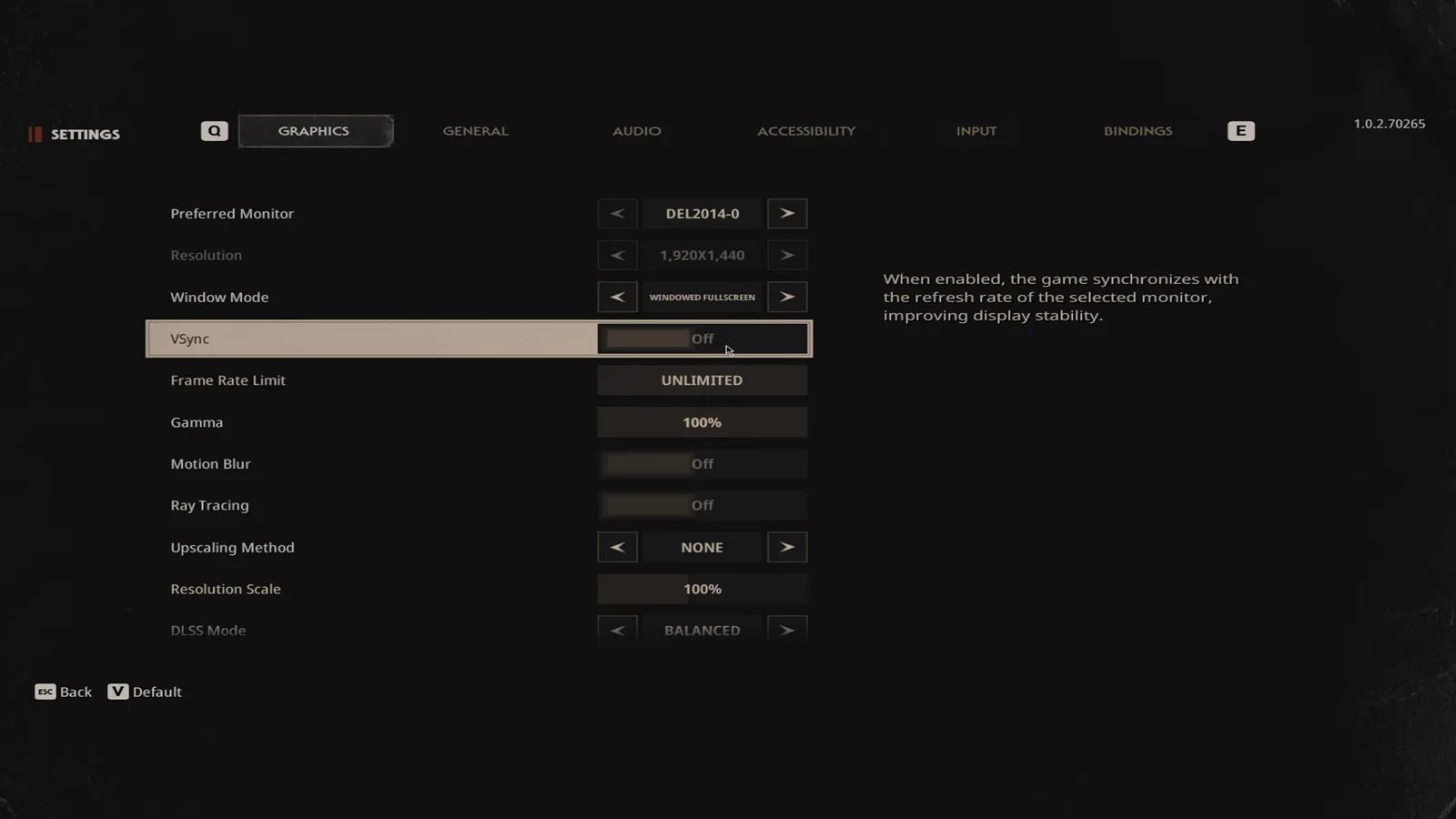
Every row you need for the display section, plus the game’s own VSync wording. Watch at 0:36.
How do you open the Graphics menu, and what else is in there?
From the main menu or a loaded match you land on a screen headed SETTINGS, with a numbered tab strip along the top: GRAPHICS, GENERAL, AUDIO, ACCESSIBILITY, INPUT and BINDINGS, plus an E slot at the far right. The bottom-left corner carries two prompts — Back and Default — and that Default button is your escape hatch: if a preset makes the game unplayable, it puts the whole tab back. The build number sits top-right, which is how 1.0.2.70265 is pinned above.
Only the Graphics tab is documented here. It is a single scrolling list, and the footage walks it from Preferred Monitor at the top all the way down to Reflection Quality at the bottom, so this page covers the complete list rather than a selection of it. The other tabs are input, sound and accessibility territory and are out of scope.
Which display options decide how the game runs?
The first block of the Graphics tab is about the window and the frame pipeline rather than visual quality.
| Option | Value in the footage | What the game’s own description says |
|---|---|---|
| Preferred Monitor | DEL2014-0 | “Selects the monitor the game window is on” |
| Resolution | 1,920X1,440 | — |
| Window Mode | WINDOWED FULLSCREEN | “Selects the preferred window mode.” |
| VSync | Off | “When enabled, the game synchronizes with the refresh rate of the selected monitor, improving display stability.” |
| Frame Rate Limit | UNLIMITED | “Adjusts the maximum frame rate.” |
| Gamma | 100% | Adjusts how bright the game renders. |
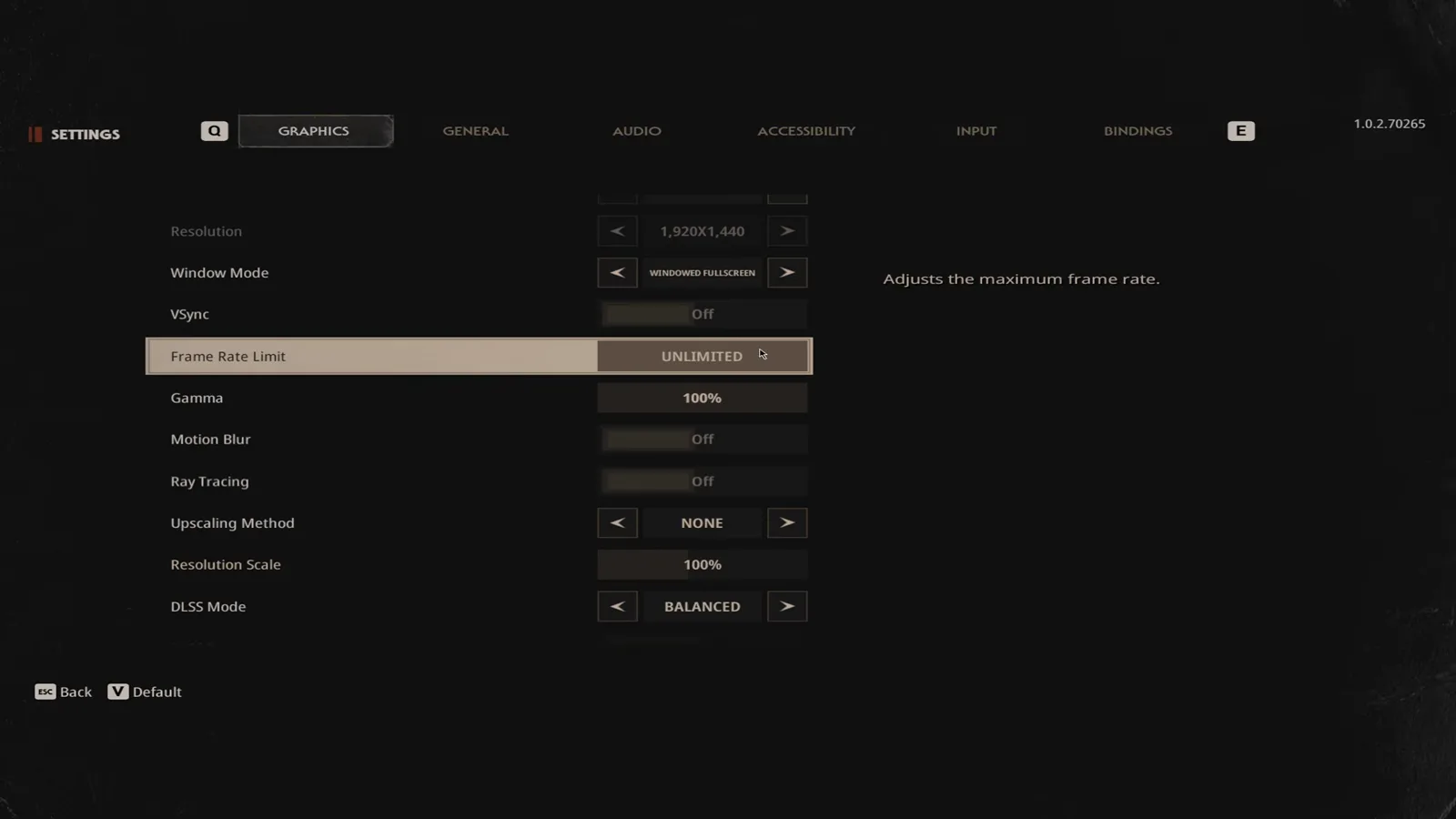
Frame Rate Limit sits right under VSync, and it is the most argued-about row on this page. Watch at 0:42.
Window Mode. Both creators use WINDOWED FULLSCREEN because they alt-tab, and the second notes the trade-off honestly: “with full screen you do get a little bit more frames” (1:44). If you never leave the game, fullscreen is the marginally faster pick.
VSync. Leave it off and only reach for it if you see tearing. The creator’s framing is that it exists “mainly there to stop screen tearing”, with the downside that “it can make your controls feel a little less responsive and cause input delay” (2:02). For a game where hearing and reacting to Michael Myers matters, added input lag is an expensive trade — see the Michael Myers profile for what you actually need to react to.
Frame Rate Limit. Here the two walkthroughs disagree, and it is worth quoting both because this is the setting most players set once and never revisit. The first creator’s rule is simple: “put it on 60 … if you do stutter, put it on 60, but if you’re not having any stutters whatsoever, just put it on unlimited” (0:36). The second argues the opposite — that a monitor only displays up to its refresh rate, so leaving the cap open wastes work: “Unlimited is actually hurting you more than it’s helping you” (1:31), with his own cap set to his 240 Hz panel. Neither claim is testable outside your own rig, so the practical advice is to try your refresh rate first, then 60, and keep whichever feels smoother.
Should Motion Blur and Ray Tracing be on or off?
Both go off, and for different reasons.
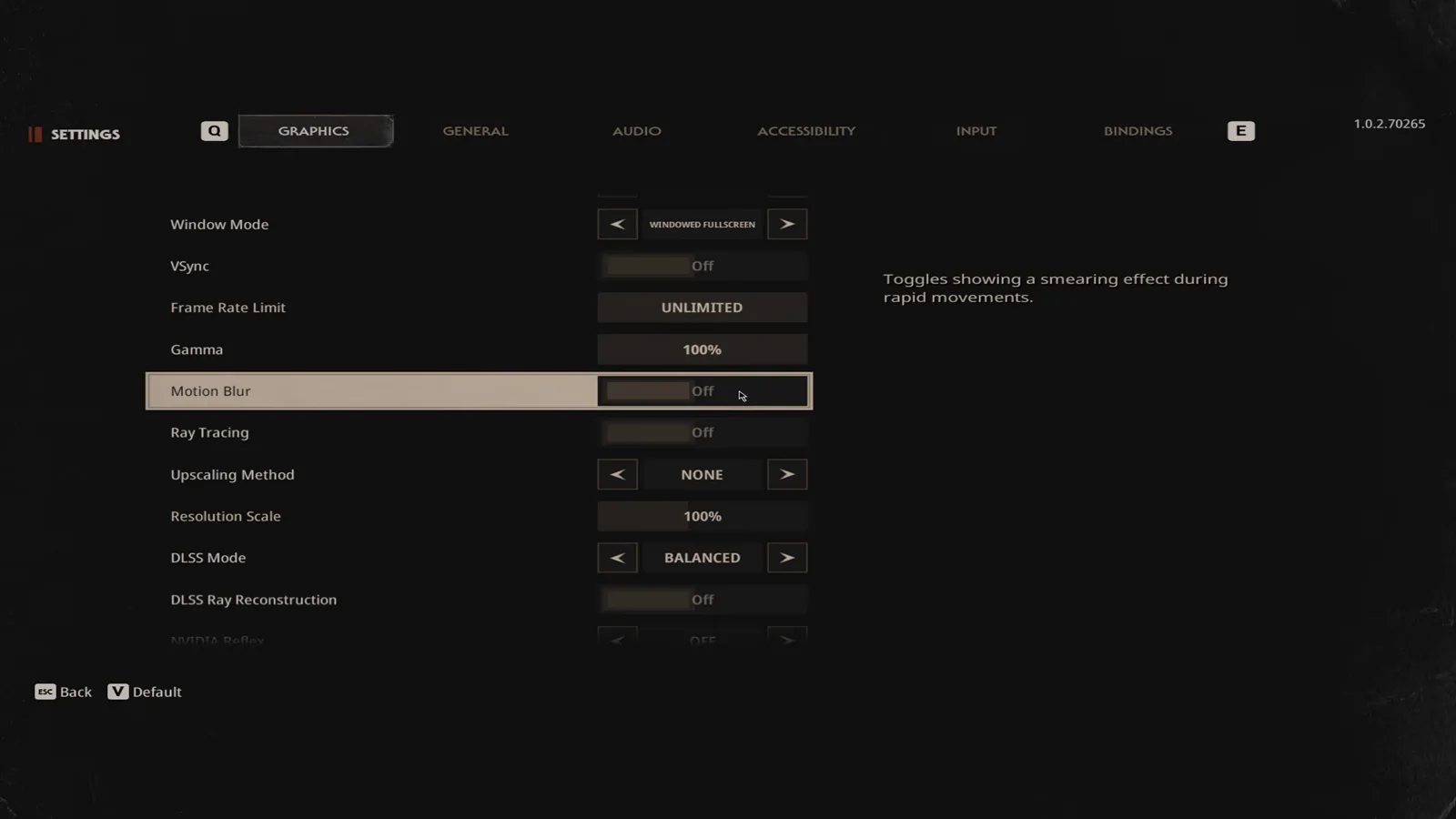
The game calls motion blur a “smearing effect during rapid movements” — exactly what you want gone while running. Watch at 1:00.
Motion Blur is a clarity setting, not a performance one. The on-screen description is “Toggles showing a smearing effect during rapid movements.” The first creator’s reasoning matches it: “you just want to keep this off. You don’t really need that blur while you’re running” (1:00). The second is explicit that it is not an FPS lever — “It doesn’t make a huge difference to performance, but I recommend turning it off mostly because the game looks cleaner when you’re moving around” — and keeps it on only when recording, “cuz it gives that cinematic blur effect” (2:33).
Ray Tracing is the opposite: it is the most expensive switch in the top block. Its description reads “Enable hardware ray tracing.” and it sits at Off with Ray Tracing greyed out alongside DLSS Ray Reconstruction until you turn it on. The first creator’s advice is “turn this off. Unless you have a really high-powered PC, turn it on, but other than that, keep it off” (1:00); the second, running an RTX 3060, says it “can also hurt your FPS pretty badly. That’s why I personally keep this off … one of the best first settings I would turn off first” (3:04).
How do Upscaling Method, Resolution Scale and DLSS fit together?
This block is where the game does the actual frame-rate arithmetic, and the rows are gated on each other.
| Option | Value in the footage | What the game’s own description says |
|---|---|---|
| Upscaling Method | NONE | “Selects the upscaling algorithm to use.” |
| Resolution Scale | 100% | “Adjusts the scaling of the resolution. Lowering the scale can improve performance.” |
| DLSS Mode | BALANCED | “Adjusts the upscaling algorithm bias towards quality or performance.” |
| DLSS Ray Reconstruction | Off | — |
| NVIDIA Reflex | Off | — |
| FSR Quality | BALANCED | — |
| FSR Frame Generation | Off | — |
| FSR Sharpness | 80% | — |
| XeSS Quality | BALANCED | — |
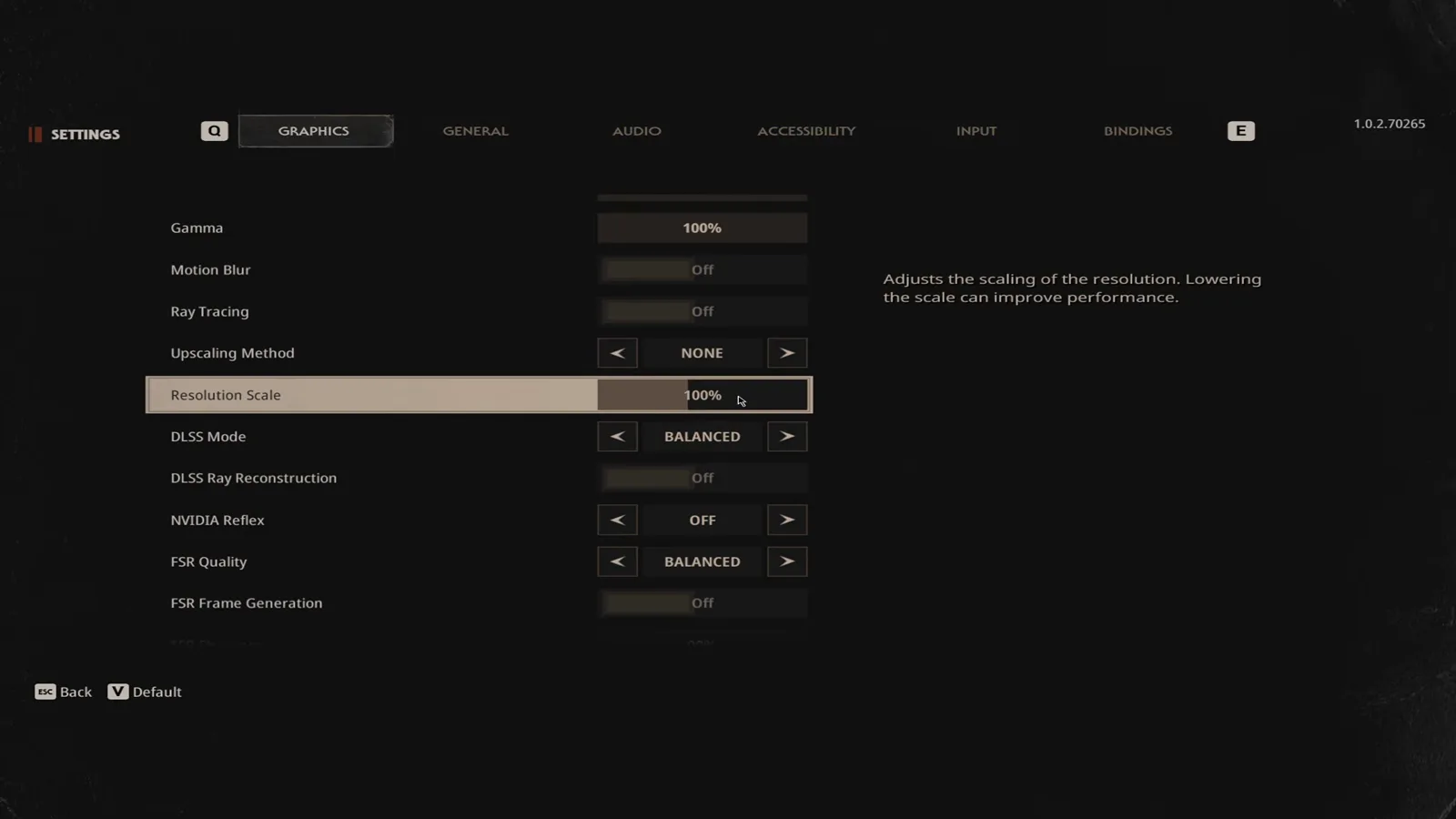
This is the one description in the whole tab that promises a frame-rate gain. Watch at 1:15.
Note what is on the screen: Resolution Scale is the only option in the entire Graphics tab whose own description states a performance effect — “Lowering the scale can improve performance.” That makes it the honest first lever to pull, and the second creator treats it the same way, running his well below native: “the higher your resolution goes, the more frames you technically lose … I kind of keep it around 60 or 50” (4:05), while warning that the image gets blurrier as you drop.
Upscaling Method is the gate. The first creator says “keep this on none” (1:00) and simply leaves the DLSS, FSR and XeSS rows at BALANCED underneath it; the second explains why the row matters at all — it is “a way for the game to give you more FPS without making you lower your actual screen resolution”, and which entry you can pick “just depends on the graphics card that you actually have”: DLSS on NVIDIA, FSR if you are on AMD or DLSS is unavailable (3:34).
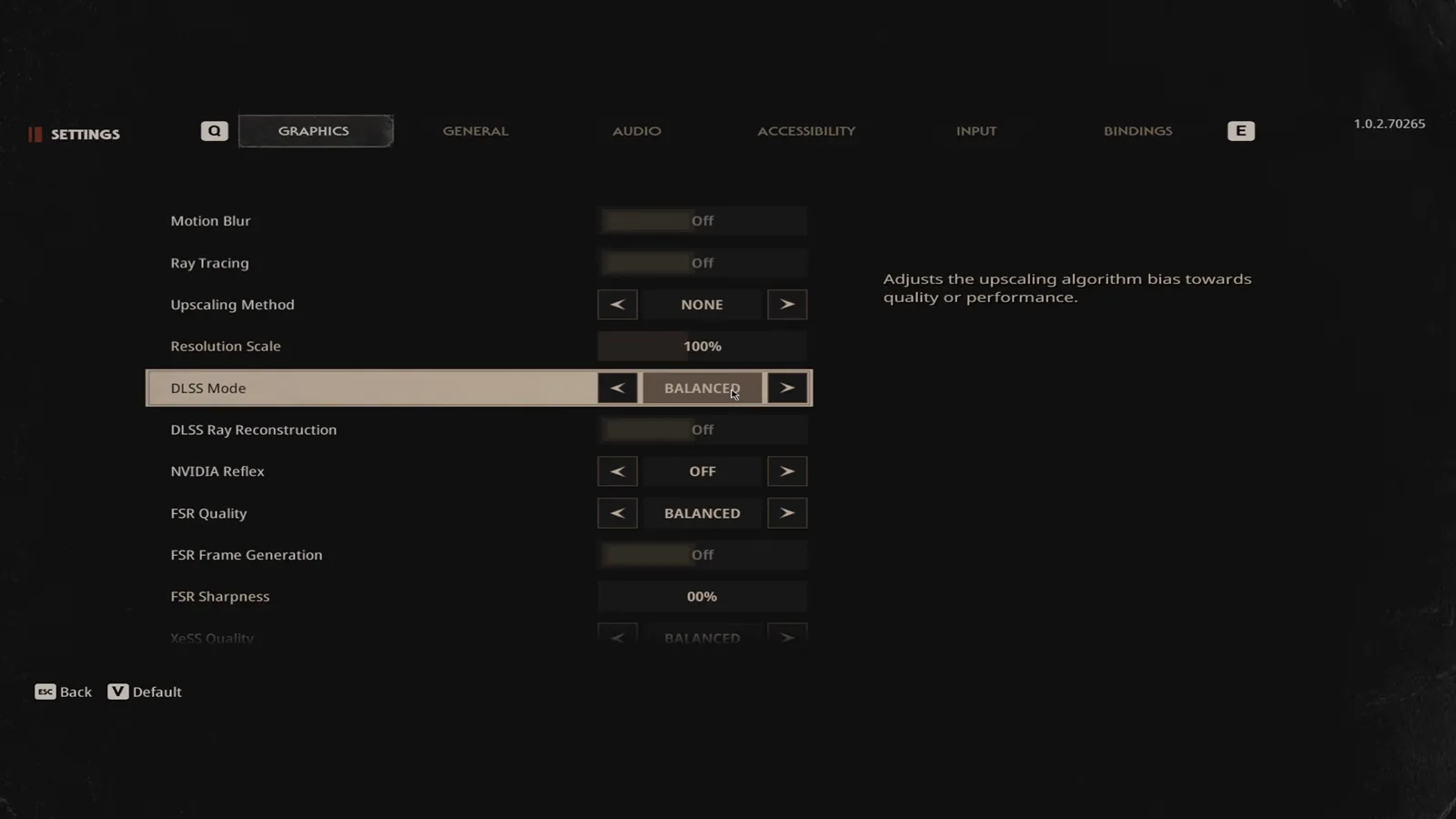
Balanced is both creators’ answer here — it is the middle of the quality-versus-frames bias. Watch at 1:18.
The rest of the block, all attributed rather than asserted:
- DLSS Mode — the first creator keeps it on “balance so your quality and performance are both good” (1:00); the second suggests starting one notch higher at 1080p and walking down: “for 1080p, I’d start with quality. If you’re struggling, I would try balance” (5:06).
- DLSS Ray Reconstruction — leave it off with ray tracing off; it “mostly works along ray tracing to make ray traced lighting look cleaner” (5:37).
- NVIDIA Reflex — a latency switch, not a performance one. The second creator runs it on with Boost and reports “it really has no effect in performance that I found” (6:07). The first leaves his off.
- FSR Frame Generation — tempting, and the least honest-feeling option in the list: it “creates extra frames to make the game look like it’s running at a higher FPS. The important thing is that it doesn’t actually fix bad performance underneath” (7:08). Do not use it to rescue a stuttering game.
- FSR Sharpness and XeSS Quality — visible in the menu at
80%andBALANCED. The second creator runs XeSS on Performance and FSR Sharpness at 50, noting sharpness has “almost no performance impact” (7:38).
Which quality settings should stay on Medium?
The first creator is unusually clear about which rows earn their frames, and it is worth quoting the summary he gives at 2:00: “The most important stuff is your anti-aliasing, your post-process, your texture quality, and your view distance. Those are the ones you want to have on medium as those do help make the game look better.”
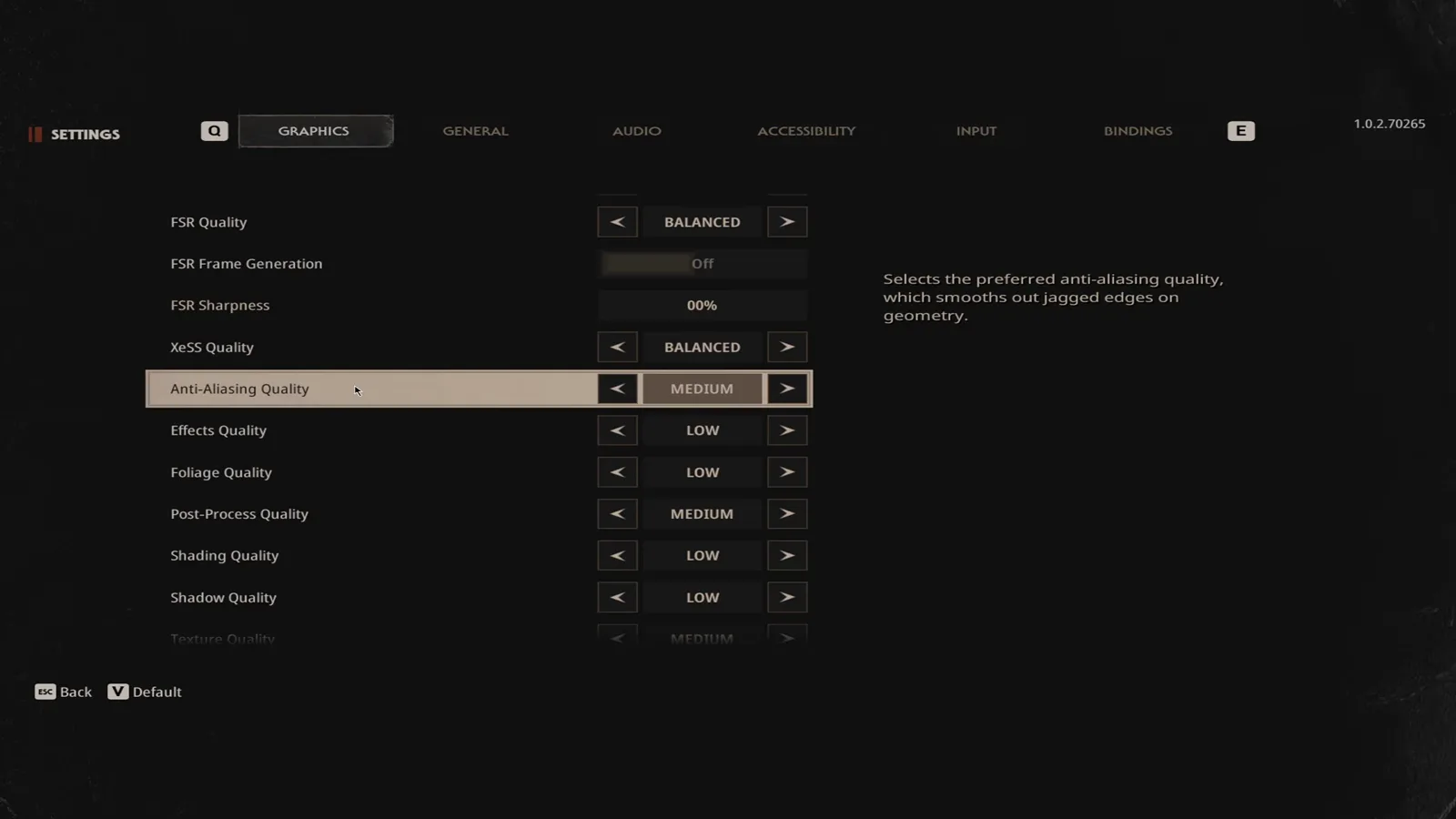
Jagged edges are the thing players notice first, which is why this one stays up. Watch at 1:36.
The game’s descriptions back that ranking up rather than leaving you to guess:
- Anti-Aliasing Quality — “Selects the preferred anti-aliasing quality, which smooths out jagged edges on geometry.” Drop it to Low and, per the second creator, “things can look a little rough or flickery” (8:40).
- Post-Process Quality — “Selects the preferred post-processing quality, which controls effects such as depth of field or screen effects.”
- Texture Quality — “Selects the preferred texture quality, which controls the richness of detail for model textures.” Both keep this at Medium; the second adds that if textures look blurry or load slowly, this is the row to lower rather than raise (9:42).
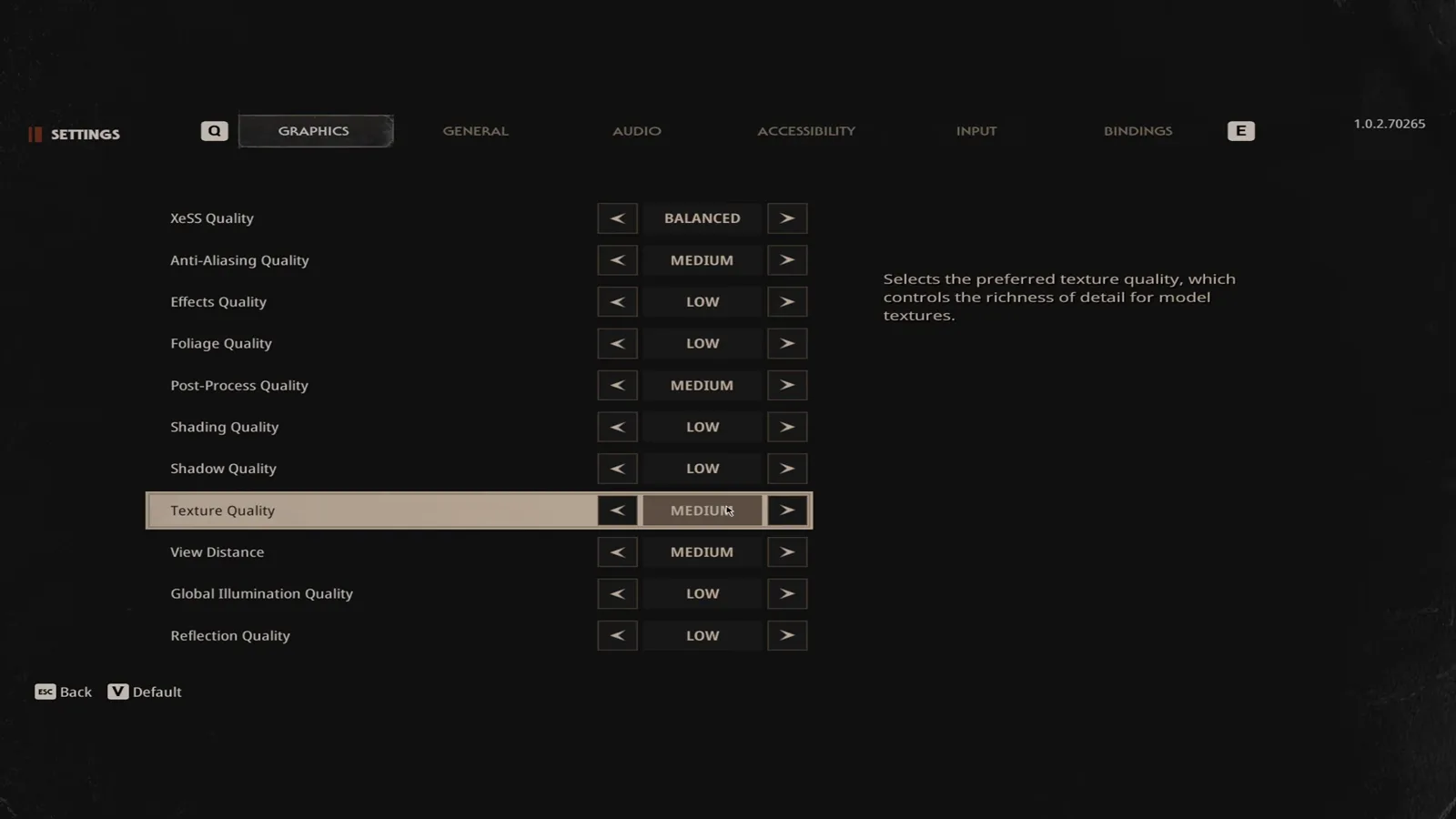
Texture Quality is the last row worth protecting before the draw-distance settings. Watch at 2:06.
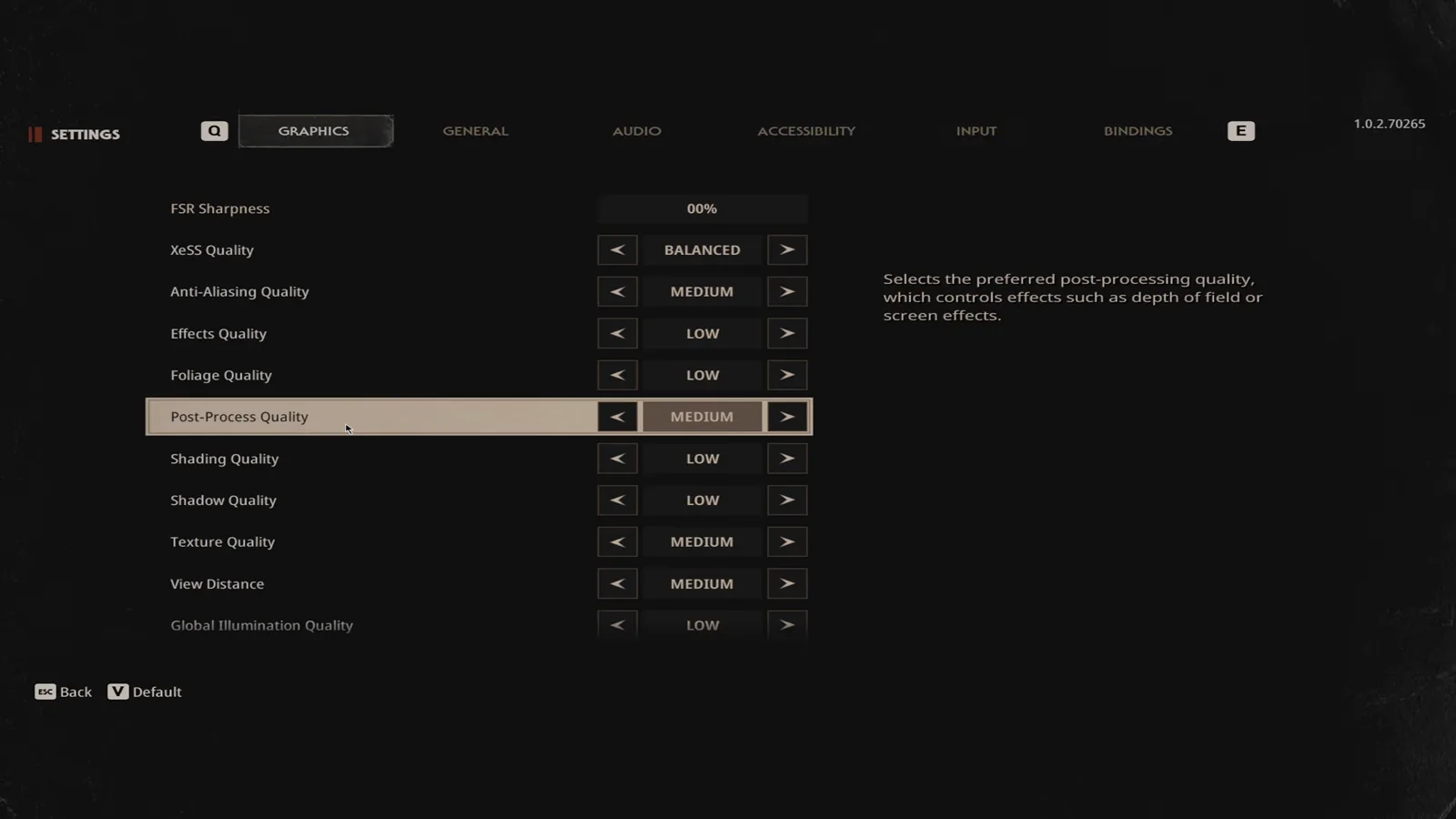
The middle of the list, where Medium sits directly above a run of Low rows. Watch at 1:54.
Which quality settings should you drop to Low?
These are the rows the footage shows set to LOW in the tested preset, each with the game’s own description so you know what you are giving up.
| Option | Tested value | What the game’s description says | Why the creator cut it |
|---|---|---|---|
| Effects Quality | LOW | “Selects the preferred effects quality, which controls the richness of detail for the game’s visual effects.” | “We’re not worried about effects” (1:30); the second creator links it to smoke, fire and particle-heavy moments (8:40). |
| Foliage Quality | LOW | “Selects the preferred foliage quality, which controls the density of flora patches.” | “We’re not looking at trees or flowers or anything like that” (1:30). |
| Shading Quality | LOW | — | “We’re not looking at shadows or anything like that … this is also going to help with performance” (1:44). |
| Shadow Quality | LOW | “Selects the preferred shadow quality, which controls the richness of detail for shadow rendering.” | Same reasoning as Shading; the second creator agrees “higher shadows can hurt your FPS” (9:42). |
| Global Illumination Quality | LOW | “Selects the preferred global illumination quality, which controls the detail of indirect lighting.” | “We’re not worried about … any indirect lighting” (2:00); the second calls it a heavy hitter (10:12). |
| Reflection Quality | LOW | — | “We’re not worried about looking at reflections … These are very unimportant” (2:00). |
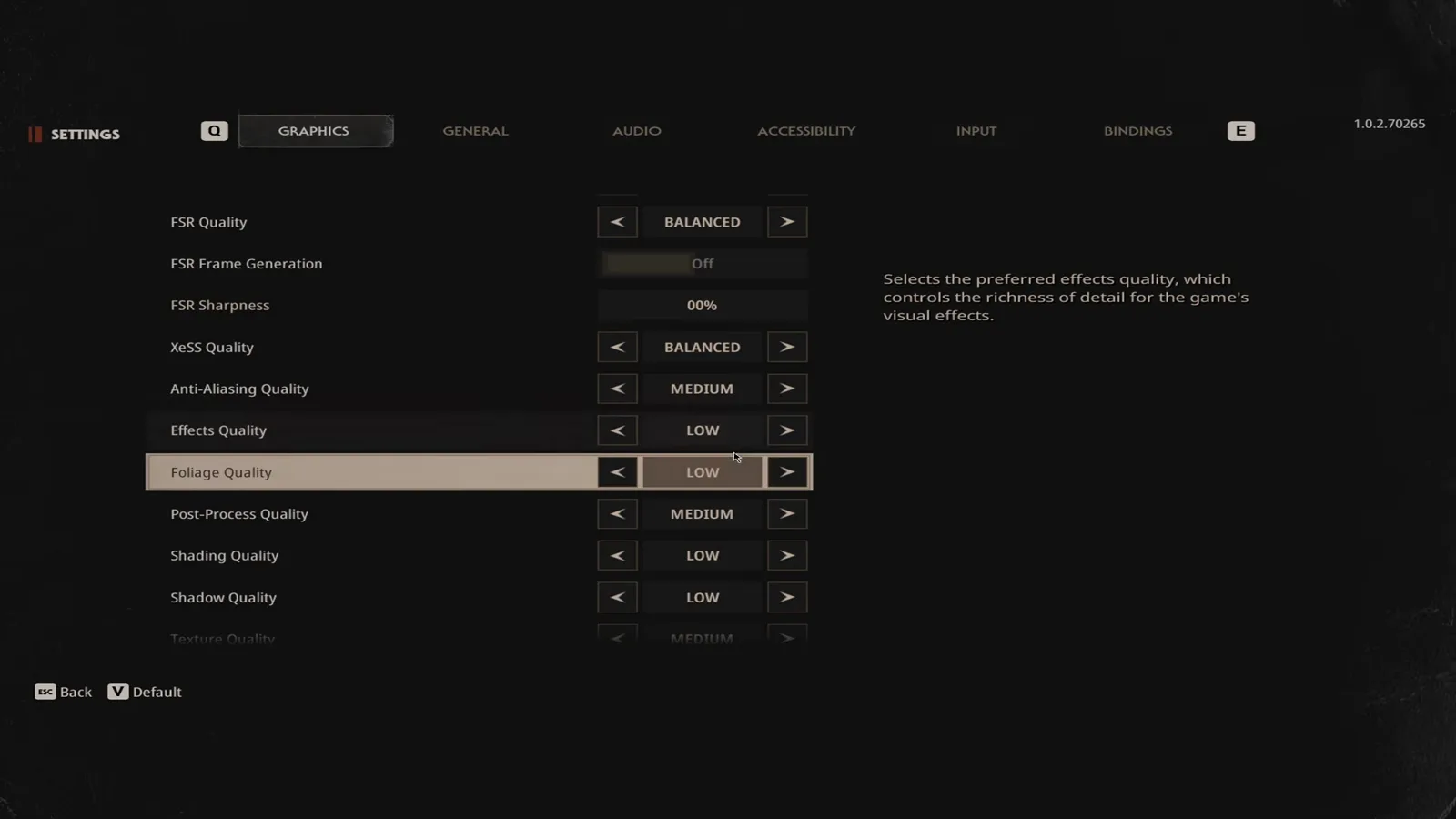
Effects sits between the upscaling block and the geometry block — the first Low you meet. Watch at 1:48.
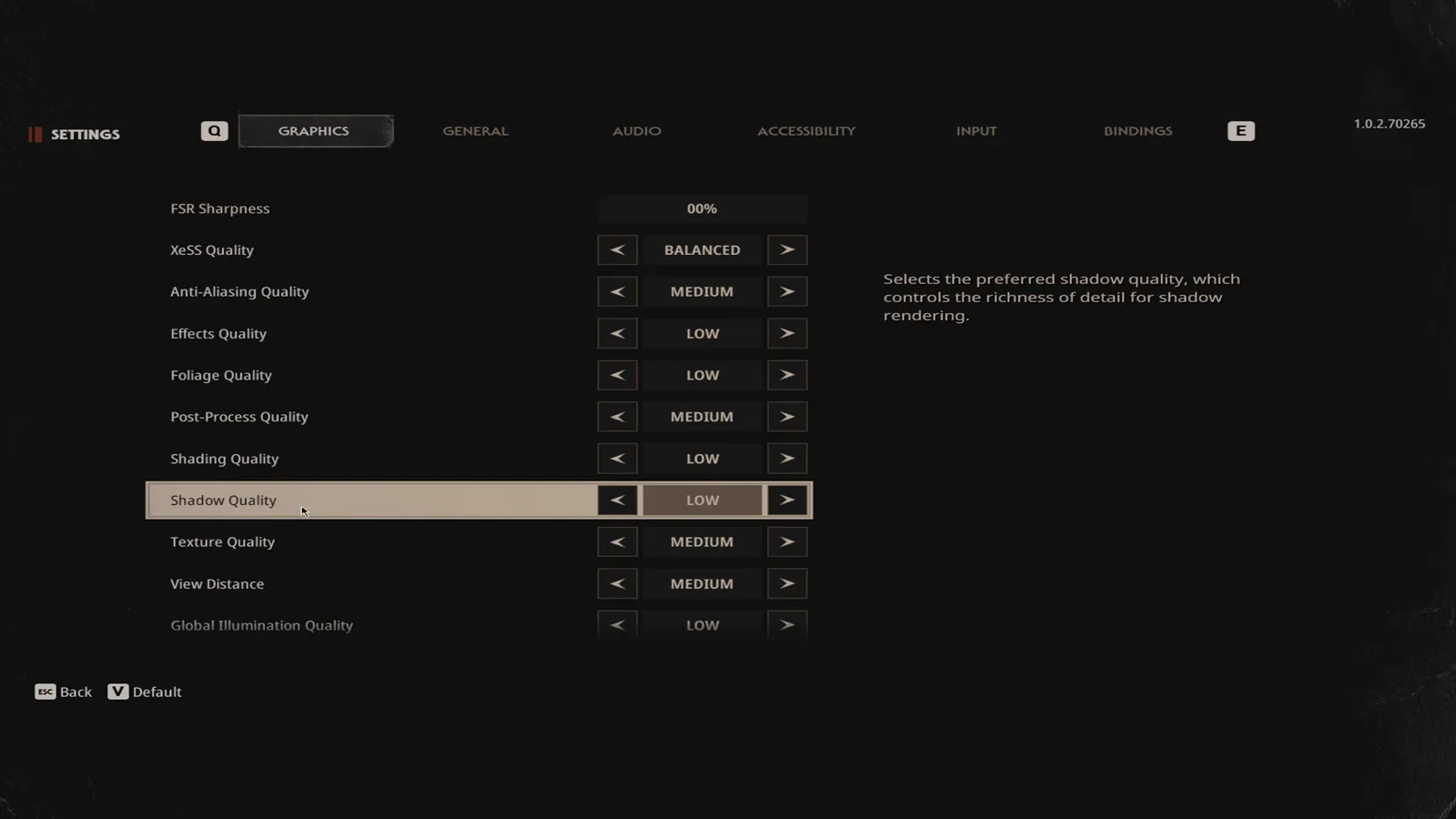
The cut line is visible in a single screen: shadows Low, textures and view distance Medium. Watch at 2:00.
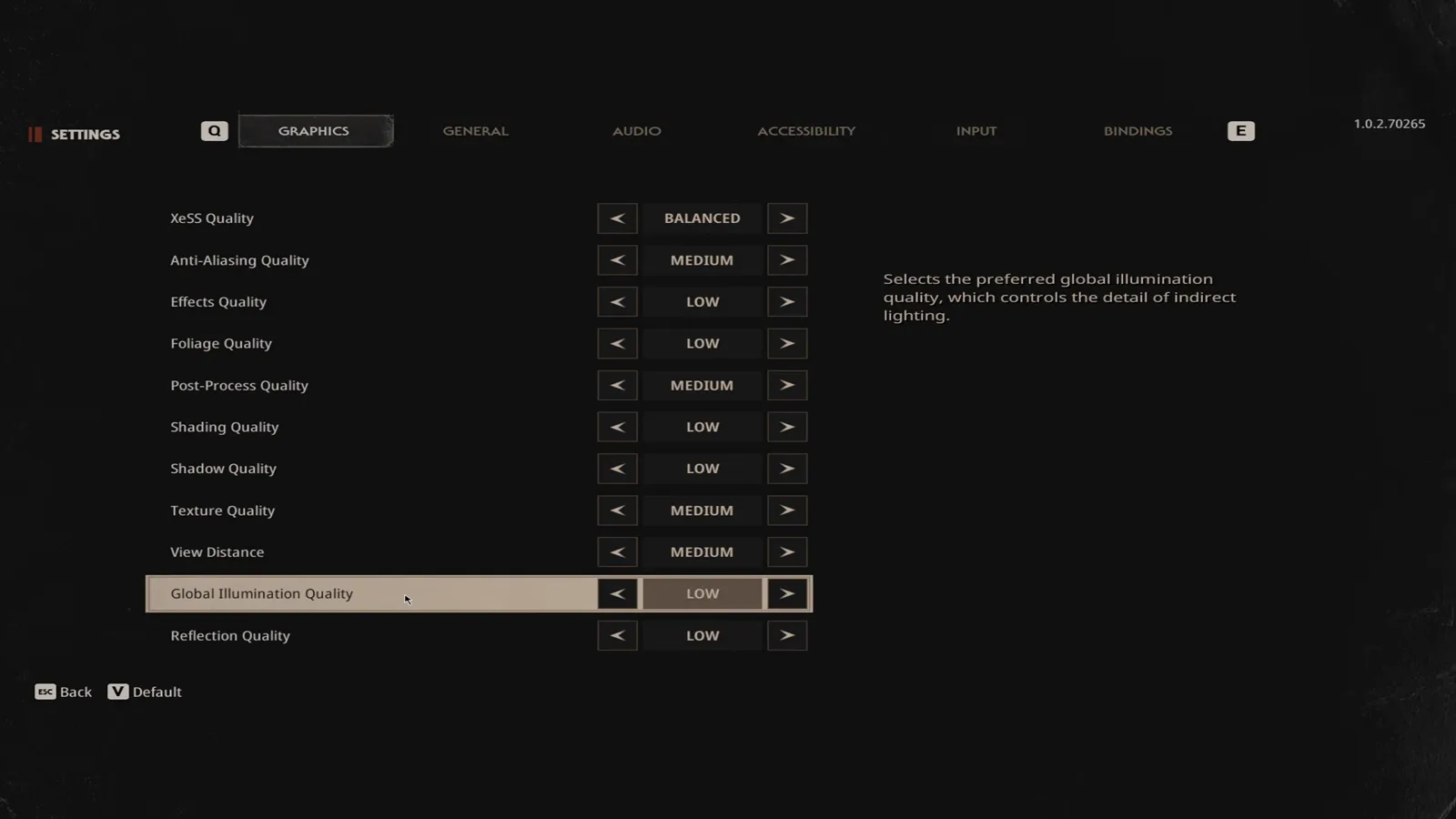
The bottom of the tab: indirect lighting and reflections are the last two rows, and both sit at Low. Watch at 2:18.
Does View Distance help you see Michael Myers sooner?
It is the one quality row in this list with a gameplay argument rather than a visual one. The first creator: “View distance actually helps you see NPCs, residents, and Michael a little bit further along with everything else. This is very helpful” (2:00). Both tested presets keep it at MEDIUM, and the second creator will go lower only under pressure: “If your game’s already struggling, this is something that I would turn down to low” (9:42).
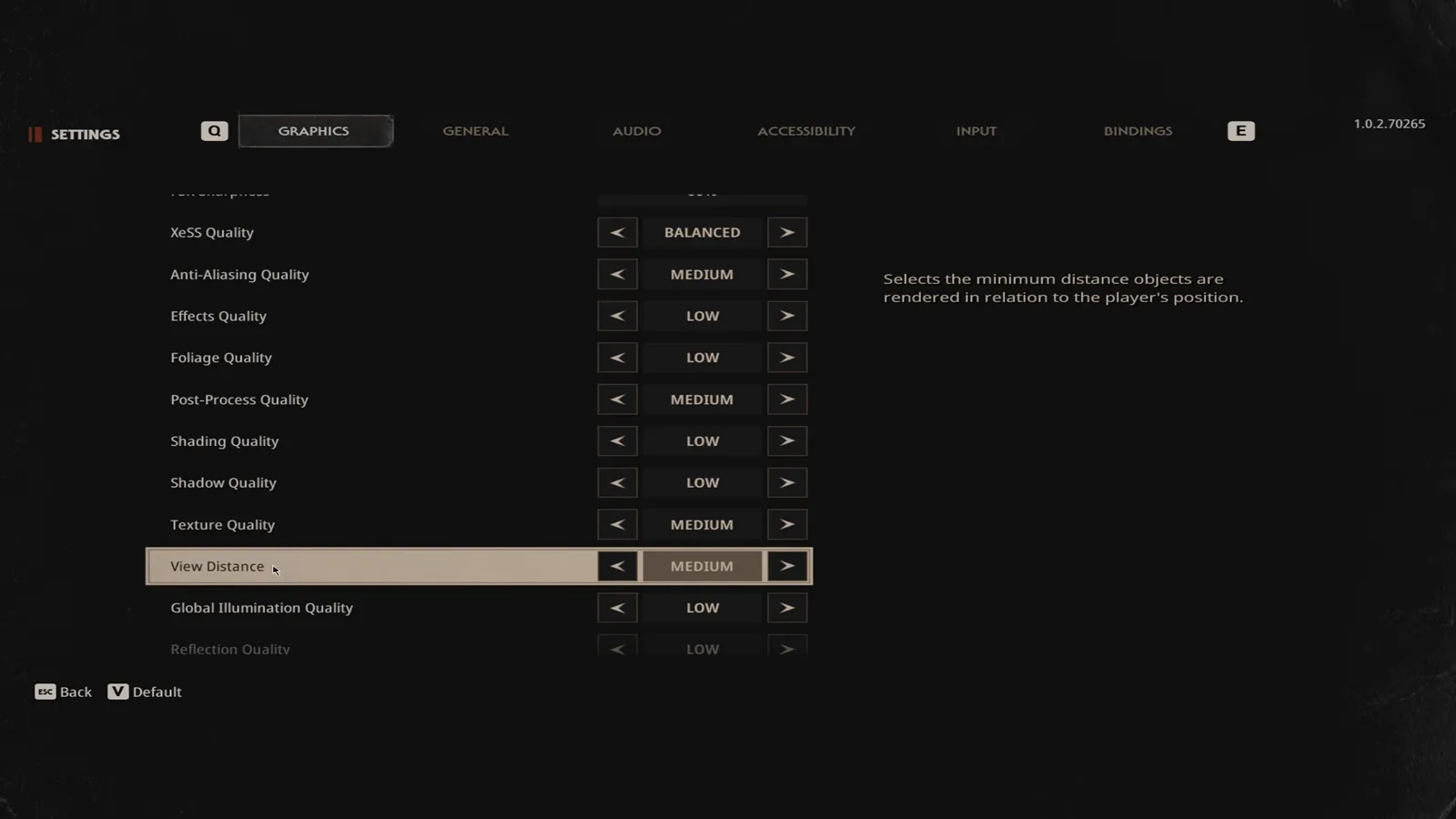
View Distance, with the two cheapest cuts sitting directly below it. Watch at 2:30.
The honest trade-off: this is a draw-distance setting, so raising it makes the game load more world per frame. Whether that costs you measurable frames depends entirely on your GPU, and neither walkthrough isolates it — so treat Medium as the default and drop it last.
The BEST Settings & Stretched Res for Halloween: The Game — emph
Sources
- emph — The BEST Settings & Stretched Res for Halloween: The Game (video ID
-RLbefadC3E, ~5:35). Used for the full option list and every on-screen description. Setting claims read from 0:18 (monitor, resolution, window mode), 0:36 (VSync, Frame Rate Limit, Gamma), 1:00 (Motion Blur, Ray Tracing, Upscaling Method, Resolution Scale, DLSS Mode, NVIDIA Reflex, FSR Quality), 1:30 (Anti-Aliasing, Effects, Foliage, Post-Process), 1:44 (Shading, Shadow, Texture) and 2:00 (View Distance, Global Illumination, Reflection, and the “most important stuff” summary). Scope boundary: from 2:31 onward this video leaves the game and demonstrates a third-party custom-resolution utility and the NVIDIA control panel. None of that is reproduced or recommended here, and no frames from that stretch are used. - Awlik — How I Get 90+ FPS With These Graphics Settings (video ID
ojwsTluyVP4, ~13 min). Text source only — no screenshots from this video appear on the page. Used for the optimisation caveat (0:31), the refresh-rate cap argument (1:31), the fullscreen-versus-windowed frame trade (1:44), VSync input-lag reasoning (2:02), the motion-blur and ray-tracing performance notes (2:33, 3:04), upscaling-vendor guidance (3:34), resolution-scale values (4:05), the DLSS Ray Reconstruction, NVIDIA Reflex, FSR Frame Generation and FSR Sharpness explanations (5:37–7:38), the per-slider reasoning (8:09–10:42) and the triage order (10:42–11:42). - Attributed performance observations, not site claims. The only concrete frame-rate figure either creator gives is Awlik’s “solid 90 frames per second” on an RTX 3060 at 1920x1080 with a 240 Hz monitor (0:31, 1:00, 3:34). That is his machine, not a benchmark, and no table of FPS numbers appears on this page because none was measured on screen.
- Quoted vs paraphrased. Text in quotation marks in the tables was read off the game’s own right-hand description panel in the frames above. Preferred Monitor and Gamma are paraphrased from their option names rather than quoted, because those two descriptions were not legible enough in the footage to reproduce exactly. View Distance is described rather than quoted for the same reason.
- Version note. Every value was read on PC build
1.0.2.70265, visible top-right in the settings menu. Halloween: The Game patches on a short cycle, so re-check this page after a major update — the violence and rating context around the game is handled separately on the age rating page.
Related Guides
- Platforms and PC Requirements — What hardware you need before any settings tweak matters.
- Beginner Tips and Mistakes — The gameplay errors that cost runs, once the game is running smoothly.
- How to Play as Michael Myers — Shape Jump and the particle-heavy moments that hit Effects Quality hardest.
- Multiplayer Overview and Launch-Day Checklist — How a match is structured, and which lag actually costs you.
- Michael Myers Profile — What you need to see, and how far away, if you raise View Distance.
- Haddonfield Heights Map Guide — The leafy residential layout where Foliage Quality shows up most.
Evidence gallery
Related field reports
characters
Halloween: The Game All Civilians: Stats and Traits Screen by Screen
All 12 Civilians in Halloween: The Game: every attribute rating read off the character screen, with each trait named on screen and its effect quoted.
characters
Halloween: The Game Michael Myers Skins and Their Unlock Requirements
Every Michael Myers skin in the Killer Skins menu with the unlock line printed under it — GHOST, CLOWN, STITCHED, SCORCHED, SAMHAIN, 1978 and the Tints.
game-info
Halloween: The Game Developer and Publisher: IllFonic and Gun Interactive
Halloween: The Game is developed by IllFonic and published by IllFonic Publishing, with Gun Interactive recorded as co-publisher. Studio base, credits, support.
Was this report useful?
Response recorded